Studio reference
Every panel and inspector, the canvas tools, the keyboard map, the ⌘K command palette, the AI features, autosave and version history.
The frame
One editor, four surfaces. The chrome is identical; what changes is the canvas and which panels appear.
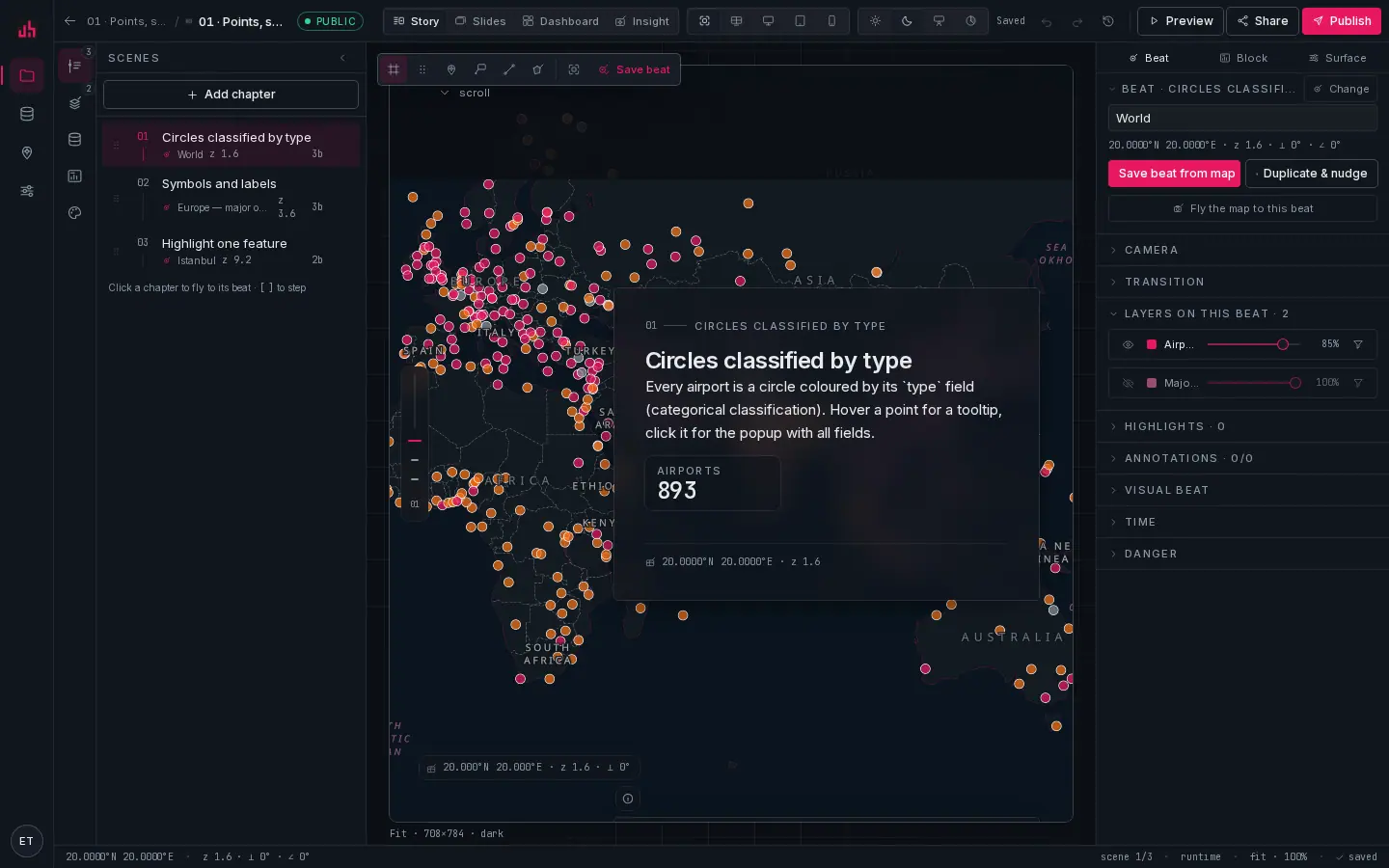
- Panel rail: Scenes, Layers, Data, Library, Design, and Actions on dashboards and insights.
⌘\collapses it. - Panel: 280 px, one panel at a time. The header names it and the chevron closes it.
- Surface switch: Story · Slides · Dashboard · Insight. Each is a menu: pick a sibling, create a new one, or convert story ↔ slides.
- Canvas tools: select, pan, pin, callout, line, area, fit to data.
- Save beat: write the current map state onto the active scene.
B. - Preview width: fit · wall · desktop · tablet · phone. Phone renders the real mobile layout, not a narrow desktop.
- Theme variant: light · dark · night · ops. Saved on the surface; this is what publishes.
- Canvas: the published runtime, editable in place.
- Inspector: three tabs: Beat, Block, Surface.
- Status bar: cursor coordinates, zoom, pitch and bearing, in mono.
- Preview: the reader's view, in place or in a new tab once the surface is published.
- Publish: snapshot and go live.
Panels
Scenes
The ordered list of chapters (story), slides (deck) or the two insight scenes. Click a scene to fly the map to its beat; drag to reorder; [ and ] step. Each row's menu offers duplicate, save beat from map, and delete. See Beats & camera.
Layers
The layer stack for the whole project, with an eye, an opacity slider and the feature count per layer. Add layer from dataset offers everything attached to the project. The legend preview at the bottom is what readers will see. See Layers & styling.
Data
The datasets attached to this project, with their geometry type, feature count and live status, plus the controls to attach another from the workspace library or bring in a new one. Attaching a dataset offers to create its first layer.
Library
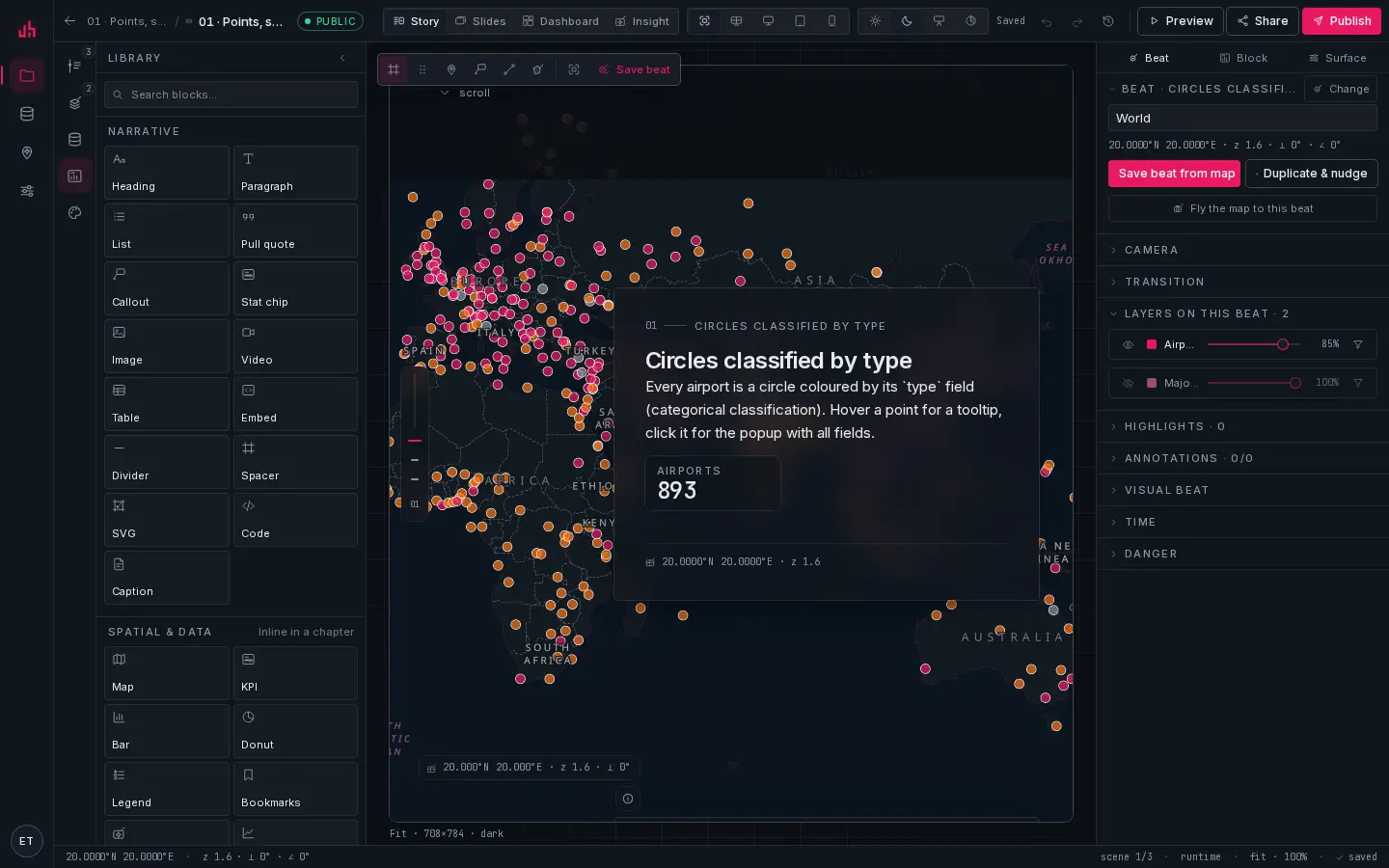
- Search: narrows the whole catalog as you type.
- Narrative: heading, paragraph, list, pull quote, callout, stat chip, image, video, table, embed, divider, spacer, SVG, code, caption.
- Spatial & data: map, KPI, chart, legend, bookmarks and the rest, placeable inside a chapter as well as on a dashboard.
- Drop target: drag a block onto the canvas, or a map marker onto the map to place a pin at that coordinate.
Design
Variant, basemap, colour tokens, type and chrome. See Theming.
Actions
Dashboards and insights only: the "when A happens, do B" graph. See Dashboards.
The inspector
Three tabs, always in the same place.
| Tab | Contents |
|---|---|
| Beat | the active scene's spatial state: name, camera, transition, layers on this beat, highlights, annotations, visual beat, time, plus Save beat from map, Duplicate & nudge and Fly the map to this beat |
| Block | whatever is selected on the canvas: text style, layout, binding for a widget, the visualisation options for a chart, the shape and label for an annotation |
| Surface | the whole surface: layout, panel width and side, glass, progress rail, hero, mobile behaviour, refresh interval, publish state |
When a layer is selected in the Layers panel the inspector shows the layer inspector instead, with the render type, paint, classification, labels, interactivity, filter, zoom range and legend.
Canvas tools
| Tool | Key | Behaviour |
|---|---|---|
| Select | V | click features and blocks; drag a point annotation's marker to move it |
| Pan | H | drag the map without selecting |
| Pin | no key | click once to place |
| Callout | no key | a pin with a label plate and a leader line |
| Line | no key | click each vertex, double-click or Enter to finish, Esc to cancel |
| Area | no key | the same, closed into a polygon |
| Fit to data | no key | frames every dataset in the project |
| Save beat | B | writes the map state onto the active scene |
Keyboard
| Keys | Action |
|---|---|
⌘K | command palette |
⌘J | ask the map (AI) |
⌘Z / ⇧⌘Z | undo / redo |
⌘S | snapshot a version |
⌘D | duplicate the selection |
⌘G / ⇧⌘G | group / ungroup |
⌘A | select everything in the scene |
⌫ Del | delete the selection |
Esc | deselect, or close what is open |
[ ] | previous / next scene |
B | save beat from map |
P | toggle preview |
⇧⌘L | lock / unlock |
⇧⌘H | hide / show |
⌘\ | toggle the left rail |
⌘. | toggle the inspector |
↑ ↓ ← → | nudge (hold ⇧ for ×10) |
⌘K, ⌘J and ⌘S keep working while you are typing in a text field; the rest stand down so they do not fight the editor. On Windows and Linux read ⌘ as Ctrl.
The command palette
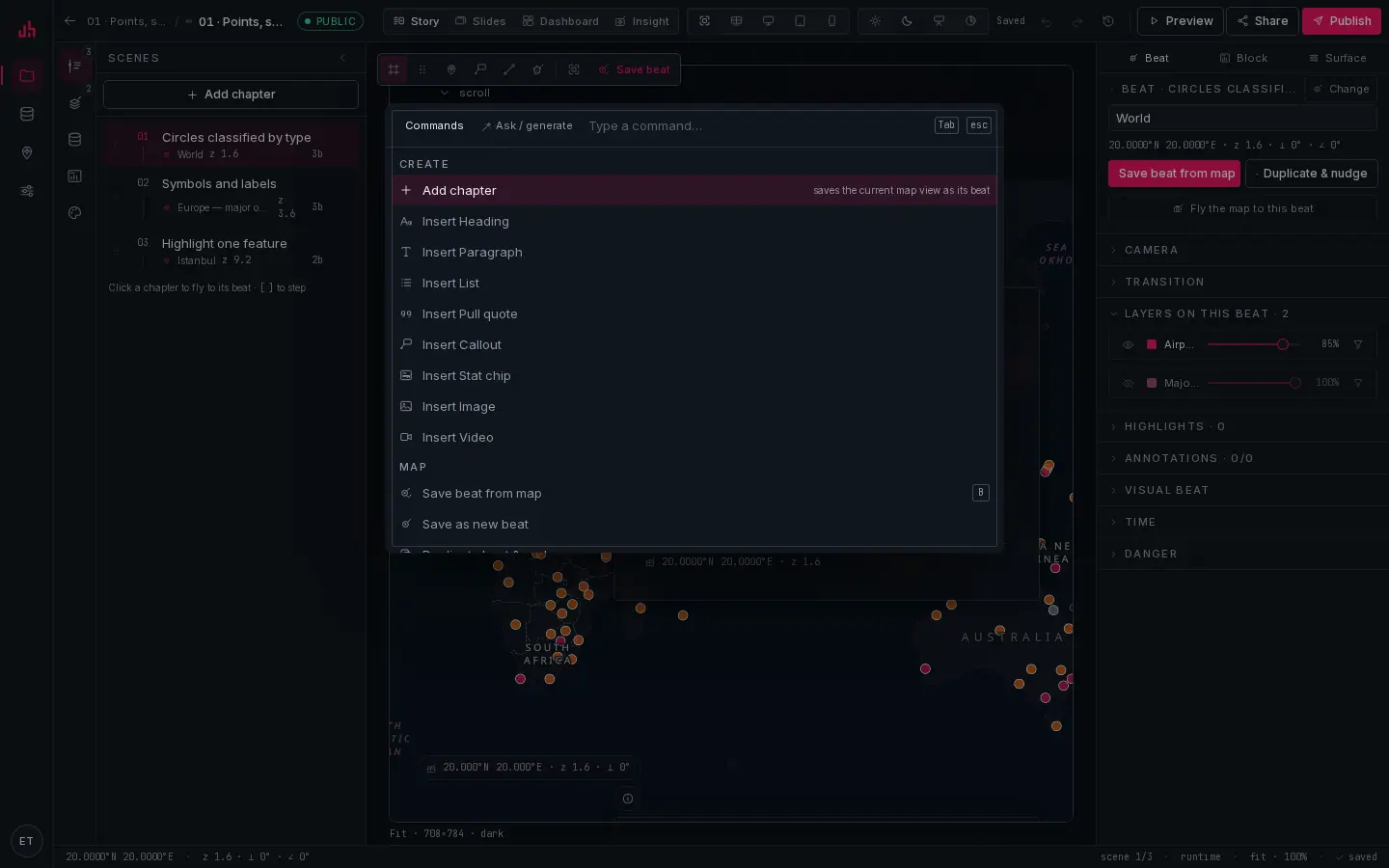
- Commands: the default tab, everything in the Studio, grouped.
- Ask / generate: the same box in AI mode;
Tabswitches,Esccloses. - Filter: type to narrow;
↑↓to move,Enterto run. - Create: Add chapter / Add slide, and every narrative block insert.
- Map: save beat, save as new beat, duplicate & nudge, and the four drawing tools.
| Group | Commands |
|---|---|
| Create | Add chapter (story) or Add slide (deck); Insert heading, paragraph, list, pull quote, callout, stat chip, image, video |
| Map | Save beat from map (B) · Save as new beat · Duplicate beat & nudge · Place a pin · Place a callout · Draw a line · Draw an area |
| AI | Generate story from data · Explain this view |
| View | Toggle preview (P) · jump to any scene |
| Surface | Snapshot version (⌘S) · Publish changes · Open share settings · Convert to slides / story |
| Edit | Undo (⌘Z) · Redo (⇧⌘Z) |
| Help | Keyboard shortcuts |
AI features
Three, all reading the same thing: your dataset's schema, field statistics, bounding box and a small sample of rows, never the whole table.
| Feature | Where | What it does |
|---|---|---|
| Generate story from data | ⌘K → AI, or the empty state | proposes 4 to 8 chapters with titles, paragraphs and a camera for each, inside the data's bounding box. Materialised as real chapters and beats you then edit. |
| Ask the map | ⌘J | answers a question about the project in ≤ 120 words and, when it helps, returns a camera to fly to. |
| Explain this view | ⌘K → AI | counts what is actually in the current viewport per layer, samples a few rows, and drafts a heading, a paragraph and a stat chip for the scene. |
The system prompts forbid inventing numbers that the provided statistics and sample rows do not support. Output is schema-validated before anything is written into your document, and everything it produces is an ordinary block you can edit or delete.
AI needs ANTHROPIC_API_KEY on the server. Without it the commands are visible but report that AI is unavailable rather than failing silently.
Autosave, undo and versions
- Autosave: edits are debounced and written continuously. The top bar shows Saving… / Saved · HH:MM / Unsaved / Save failed.
- Undo:
⌘Zcovers the block tree, actions, beats, layers and annotations. - Versions:
⌘Ssnapshots the surface with a label; publishing snapshots one automatically. Surface → History lists and restores them. Restoring is an edit, so it still has to be published.
Preview and publish
Preview (P) switches the canvas into read mode in place. Once the surface has been published it opens the real viewer in a new tab instead, including a draft preview of unpublished changes. Publish writes the snapshot; Share opens the full settings page. See Publishing & sharing.
Verified on 2026-09-02 against the local development build (story, slides, dashboard and insight surfaces of the seeded sample projects).
Something wrong or missing? Write to hello@spatly.io.